Operate the desktop
Open and close applications, list visible windows, focus a target window, inspect visible UI and interact with supported controls.
See details ↗MRCO AI bridges conversation and the Windows desktop with tools for apps, files, windows, keyboard and mouse-style UI interaction, PowerShell commands and custom scripts. Pair it with your installed development tools to draft, build and test with less context switching.
This preview is built from the supplied Core interface source, not a redesigned mockup.
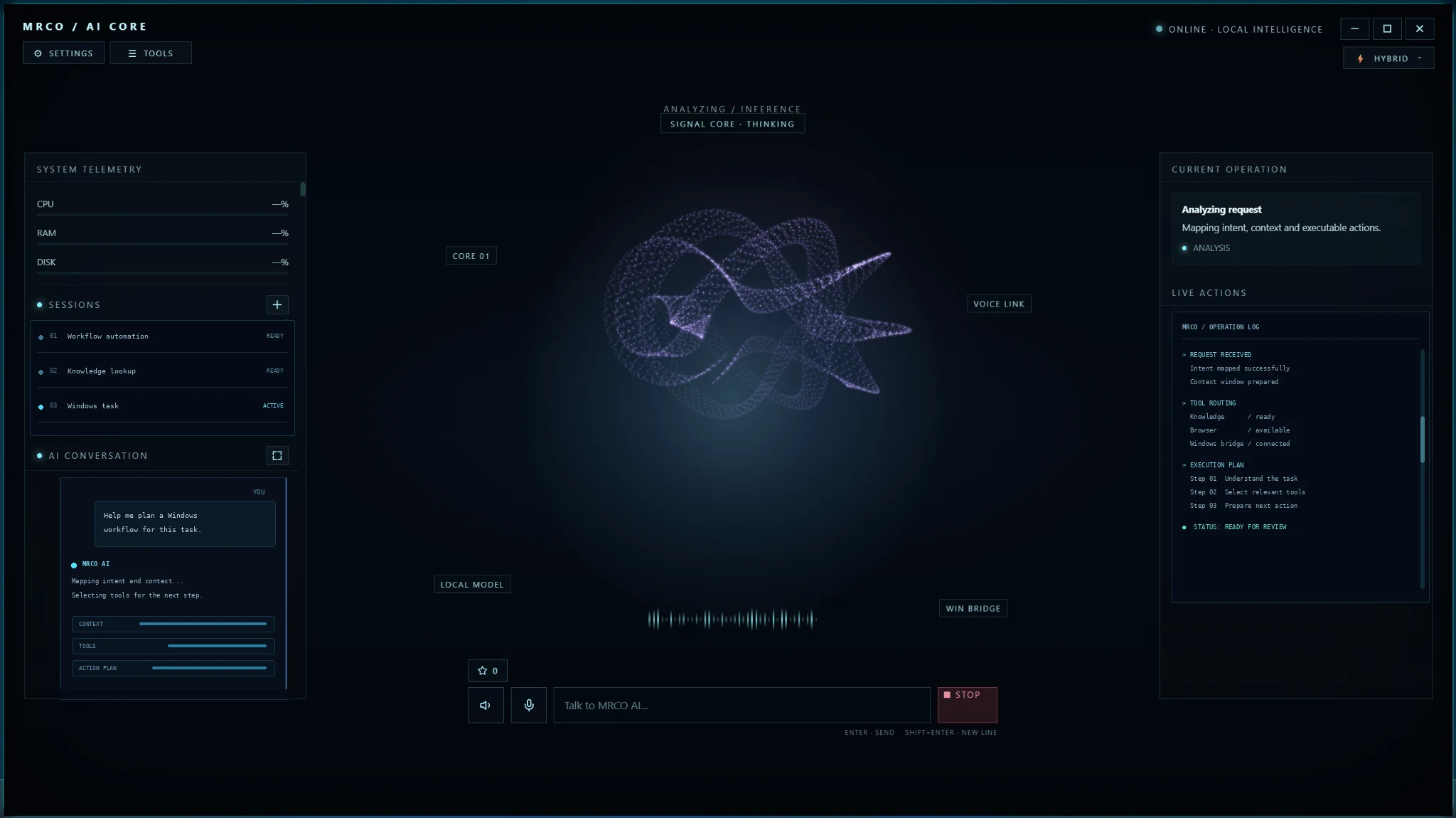
Ask for an outcome, define the boundaries, and let the agent choose from the tools available to it. The exact action set depends on model tool-calling quality, permissions and installed components.
Open and close applications, list visible windows, focus a target window, inspect visible UI and interact with supported controls.
See details ↗Find files by name, read supported formats, create folders, write reports, copy or move files and request an inventory before changing anything.
See details ↗Create or update code files, invoke installed build/test commands, inspect logs and iterate on failures with the model.
See details ↗Execute PowerShell commands through the current user context; elevated commands may trigger Windows UAC and should be reviewed first.
See details ↗Custom extensions can call PowerShell, Python or CMD scripts using structured JSON input—use only scripts you trust.
See details ↗For multi-step jobs, request a plan, an explicit review before destructive operations and an independent check of the result.
See details ↗MRCO AI is most useful when you pair clear intent with an explicit scope. Tell it what to inspect, what to change, what to leave untouched and how success should be checked.
Illustrative prompt. Actual code generation, compilation and test execution depend on the model and tools installed on the PC.
Keep the agent effective and your system predictable by structuring complex jobs into explicit, reviewable steps.
Specify the deliverable, path, app or target window.
Set what can change and which actions need approval.
Allow relevant tools and the chosen model to handle the supported actions.
Review logs, outputs and test evidence before closing the task.
Yes, MRCO AI can build applications and run tests. It can create files, invoke the installed development toolchain, read compiler or test output, attempt fixes and repeat the check. Missing supported tools can be checked and installed when permissions and the environment permit. Review file changes and system-level actions before approving them.